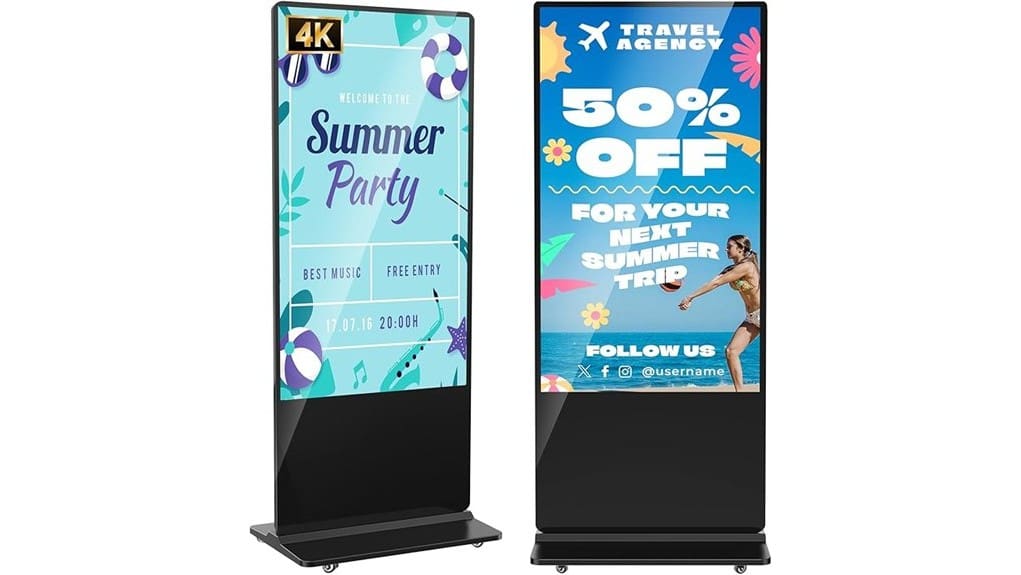
You’ll get a high‑resolution 65″ 4K IPS panel that gives crisp detail and consistent color across wide viewing angles, though blacks won’t match VA/OLED depth. Built‑in twin 5W speakers are fine for ambient zones but won’t replace a PA. HDMI/USB and Android CMS enable networked playlists and remote control, but test codecs, EDID, and update rollouts to avoid playback issues. Installation needs secure floor anchoring and thermal checks; keep going for full deployment tips.
Some Key Takeaways
- 65-inch 4K panel offers high pixel density and crisp detail, ideal for close-view indoor viewing.
- IPS matrix provides wide 178° viewing angles with consistent color across large crowds.
- Built-in 2×5W front speakers are usable but insufficient for high-traffic audio needs.
- Android CMS, HDMI/USB inputs, and Wi‑Fi enable remote scheduling, but validate codecs and network security.
- Verify stand leveling, thermal management, and three-year warranty for reliable long-term deployment.
Why Choose a 65 4K Indoor Digital Signage for Commercial Spaces
Because a 65‑inch 4K indoor digital signage combines high pixel density with a wide 178° IPS viewing angle, you’ll deliver crisp, color‑accurate content that stays legible across crowded commercial environments. You’ll leverage a floor‑standing kiosk with Android CMS and networked playback to centralize content control, reducing manual updates and downtime. Smart split‑screen and USB/HDMI inputs let you tailor messaging per zone, improving customer engagement while supporting analytics-driven iteration. During space planning you’ll position units to minimize glare and maximize dwell time. Be critical: evaluate maintenance access, integration with existing networks, and return on attention before rollout. Consider pairing displays with backlit letter boards to brighten complementary messaging in high-traffic areas.
What the 65 4K Display Delivers: Image, Viewing Angle, and Audio Performance
After evaluating placement, network integration, and content strategy, you should now scrutinize what the 65‑inch 4K panel actually delivers in image fidelity, viewing coverage, and sound. You’ll get crisp 4K detail on an IPS matrix with consistent color across 178° viewing, but demand precise color calibration to avoid drift in varied ambient light. Measured contrast ratio is adequate for indoor environments, though deep blacks remain limited by IPS characteristics. Audio uses two 8Ω 5W drivers; speaker placement in the kiosk favors front projection but won’t replace external PA for high-traffic spaces. Expect solid visuals; supplement audio where needed. Consider applying eye-catching graphics principles when designing content to maximize the sign’s impact.
Connectivity, Software, and Daily Operation: HDMI, USB, Wi‑Fi, Android CMS, and Remote Control
How will the 65‑inch kiosk fit into your content pipeline and daily operations? You’ll integrate via HDMI or USB, but expect occasional HDMI troubleshooting—use quality cables and test EDID if signal drops. USB compatibility is solid for media playback; stick to FAT32/exFAT formats. Wi‑Fi security matters: enforce WPA2/WPA3, VLANs, and restrict remote ports. Android updates arrive, but you’ll control rollouts to avoid CMS conflicts. Remote pairing works reliably for routine control, though initial pairing can be fiddly. Content scheduling is robust in the Android CMS—automate playlists and timing, but validate formats and codec support before deployment. Consider clear signage best practices for workplace message boards to ensure messages are concise and legible across the display.
Installation and Customization: Floor‑Standing Setup, Touch vs Non‑Touch, Branding Area, and Placement Tips
When you set up the floor‑standing 65″ kiosk, treat the enclosure and display as a single integrated system: verify the stand’s leveling, secure the chassis to floor anchors where required, and route power/network/HDMI cables through the internal channels to prevent strain and tampering. You’ll choose touch or non‑touch based on engagement goals: touch enables interactive calibration and multiuser analytics but raises service load. Plan front‑panel branding for readable logo placement without occluding sensors. Position for 178° visibility, stable Wi‑Fi and accessible USB/HDMI ports. Document floor standing maintenance intervals, lock down software, and test thermal dissipation before deployment. Also consider using wind‑resistant bases for any outdoor‑adjacent placements to keep freestanding signs secure in gusty conditions, especially if the kiosk will be moved near doors or open walkways where wind resistance matters.
Who Should Buy It and How to Decide: Use Cases, ROI, Warranty, and Final Buying Checklist
Because the 65″ 4K floor‑standing kiosk balances high visual impact, networked content management, and a three‑year warranty, you should evaluate it against clear operational objectives—do you need large‑format static ads, interactive wayfinding, or scheduled multimedia playlists across locations? If your target demographics include high‑traffic retail shoppers, travelers, or healthcare visitors, it delivers visibility and modular inputs (HDMI, USB, Wi‑Fi). Calculate ROI by comparing engagement metrics, ad revenue, and reduced print costs against purchase plus CMS and installation. Factor lifecycle planning, warranty coverage, and software support. Final checklist: display specs, connectivity, touch option, branding area, warranty, and TCO. Many businesses use these displays because they effectively boost sales through eye‑catching message placement.
Some Questions Answered
Can the Kiosk Run 24/7 Without Voiding the Warranty?
Yes — you can run it continuous operation, but check warranty terms first. You’ll need to verify the manufacturer’s specified thermal management and follow the recommended maintenance schedule to avoid voiding coverage. Operate in ventilated environments, schedule periodic inspections, and apply firmware updates. If you modify hardware or ignore maintenance, warranty terms may be voided. Be proactive: document uptime and service actions to support claims under the 3-year warranty.
Is On‑Site Installation Service Available After Purchase?
Yes — you’ll get on‑site installation service after purchase. Technicians provide onsite maintenance and installation training during setup, verify network/HDMI/USB integration, and confirm CMS and Android software operation. You’ll receive diagnostics, timing on/off configuration, and basic speaker/audio checks. The service’s scope is technical and practical; insist on documented handover and a training checklist so you can evaluate the install quality and future maintainability.
What Power Consumption (Watts) Does the Unit Typically Use?
Typical draw is about 120–180 watts during normal operation. You’ll see peak spikes near 200 W during heavy video or brightness peaks, and idle/standby drops below 10 W. You’ll want to check measured values for your configuration (touch, brightness, installed player). The unit’s energy efficiency is average for a 65″ 4K IPS; consider scheduling, brightness control and CMS-driven timing on/off to optimize consumption and lower operating costs.
Are Security Locks Included for Hdmi/Usb Ports?
No — the unit doesn’t include built-in security locks for HDMI/USB ports. You’ll need to add third-party lock covers or an enclosure retrofit to restrict access; consider connectors with tamper switches for alerting unauthorized access. If you want integrated physical security, specify it before purchase so the vendor can offer customization (front-panel locks, tamper-switch integration). That approach preserves warranty and supports secure, innovative deployments without compromising ports or function.
Can the CMS Integrate With Third‑Party Scheduling Software?
Yes — the CMS supports API integration so you can link third‑party scheduling tools. You’ll need to map endpoints and token-based auth; the system supports user provisioning via LDAP/SSO or local roles. Expect to configure payload fields, rate limits and error handling during setup. It’s flexible but not plug‑and‑play: you’ll perform integration testing, reconcile timezones and permissions, and may request vendor assistance for advanced automation.